🚀 Power Your Productivity with the Ultimate Multi-WAN VPN Router
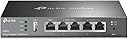
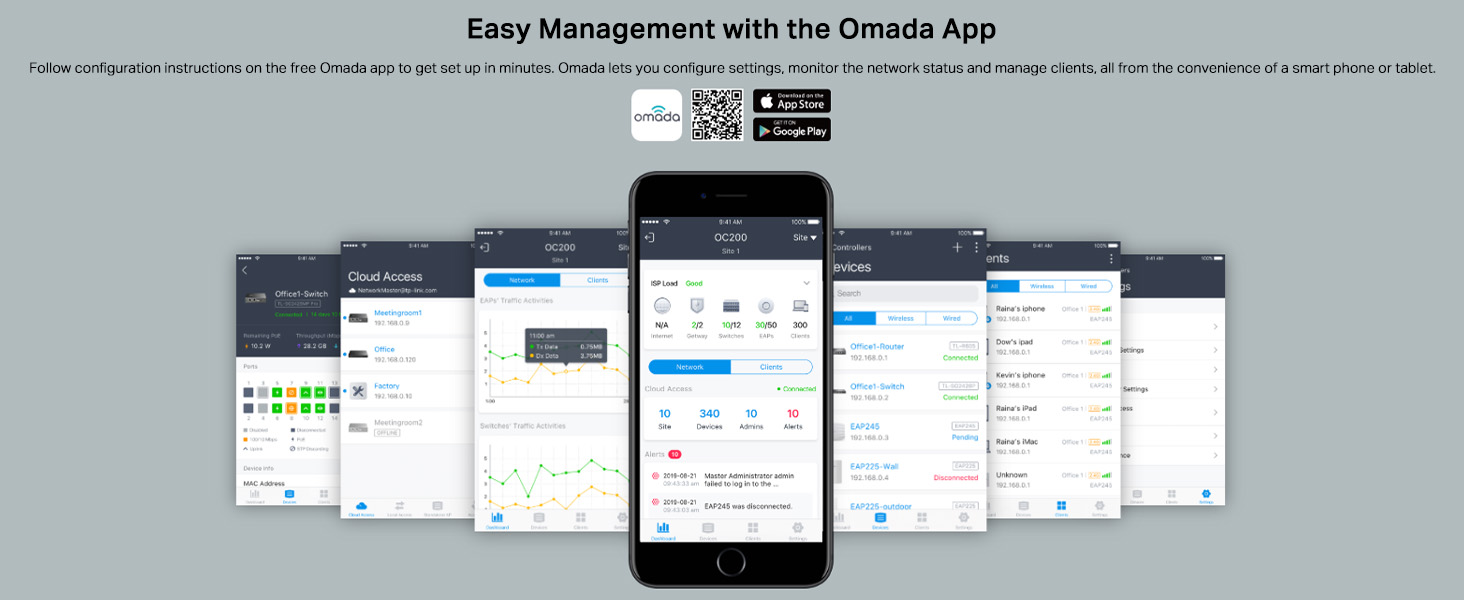
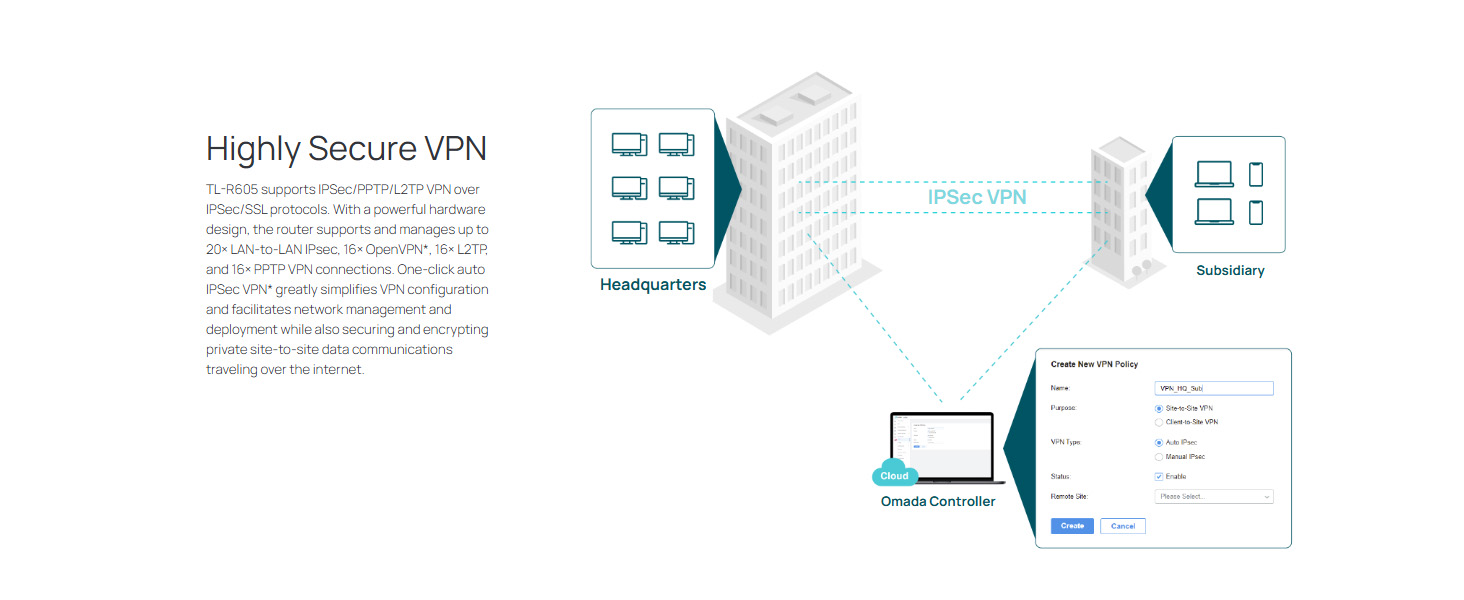
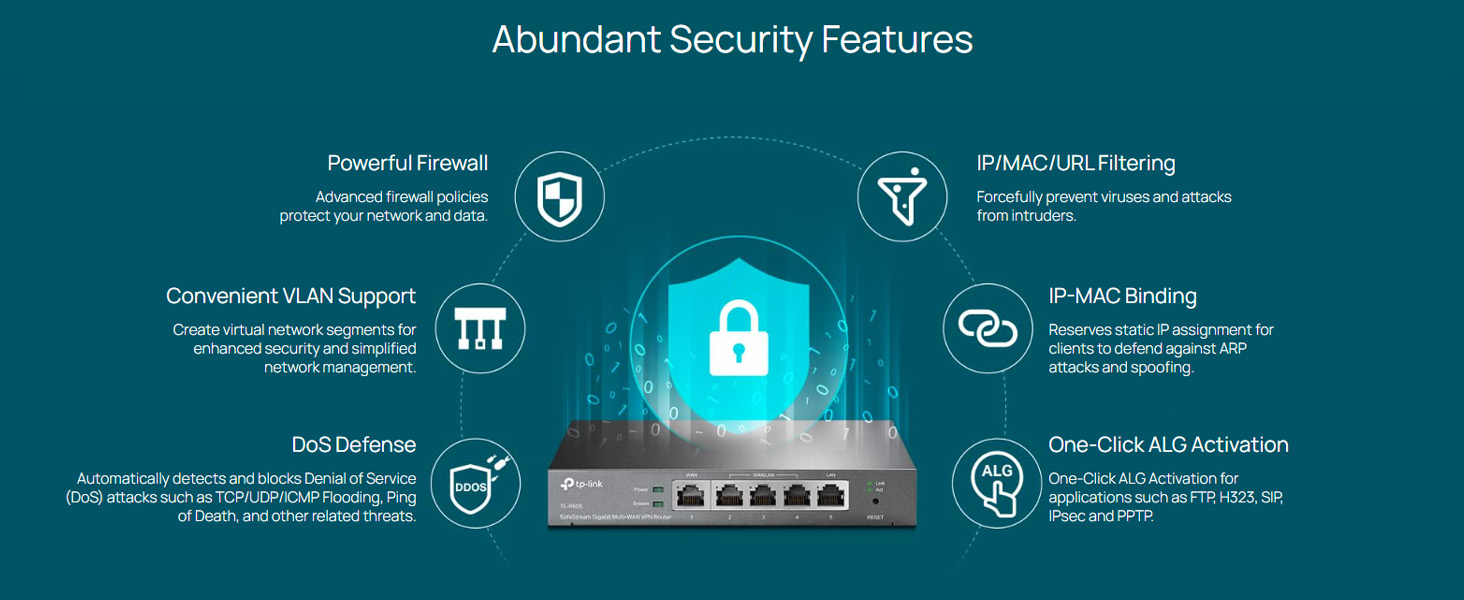
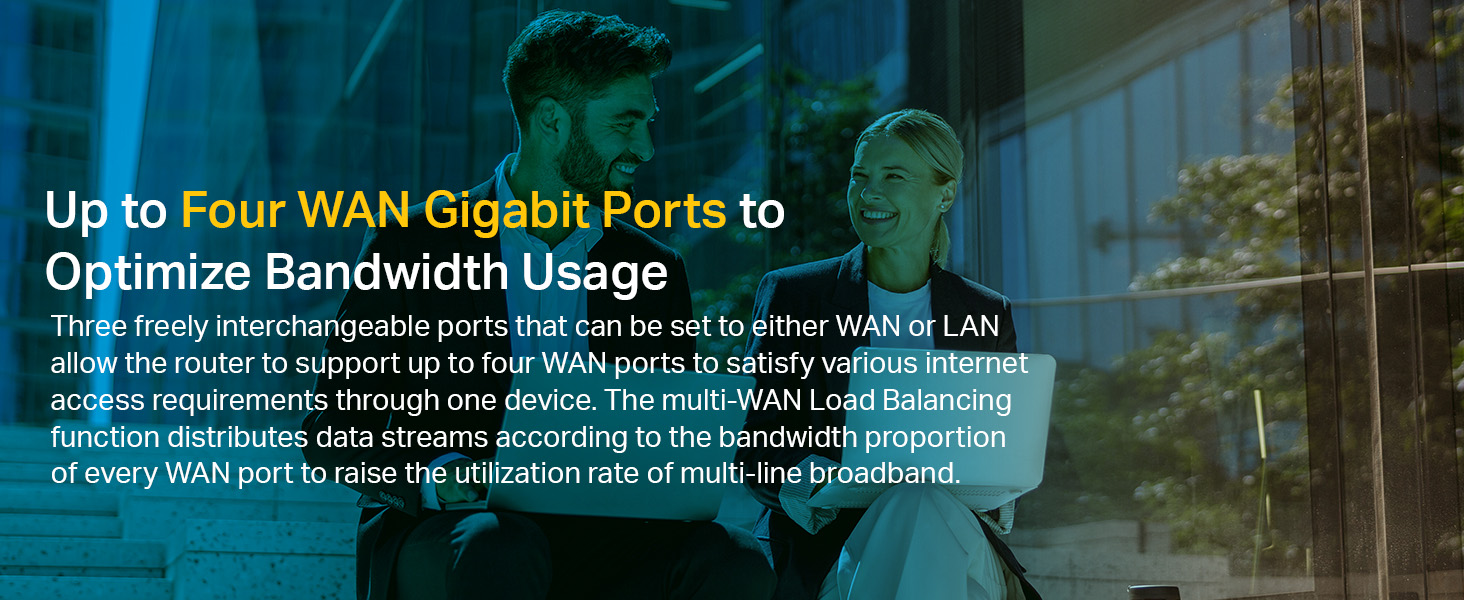
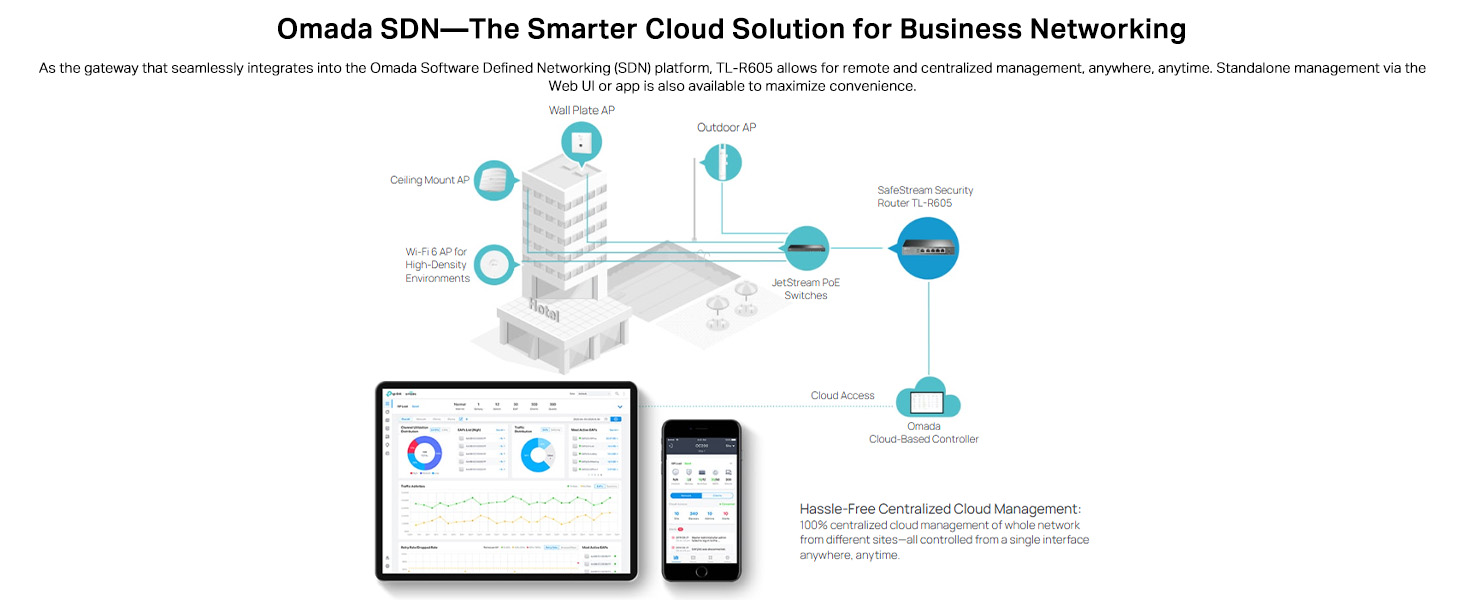
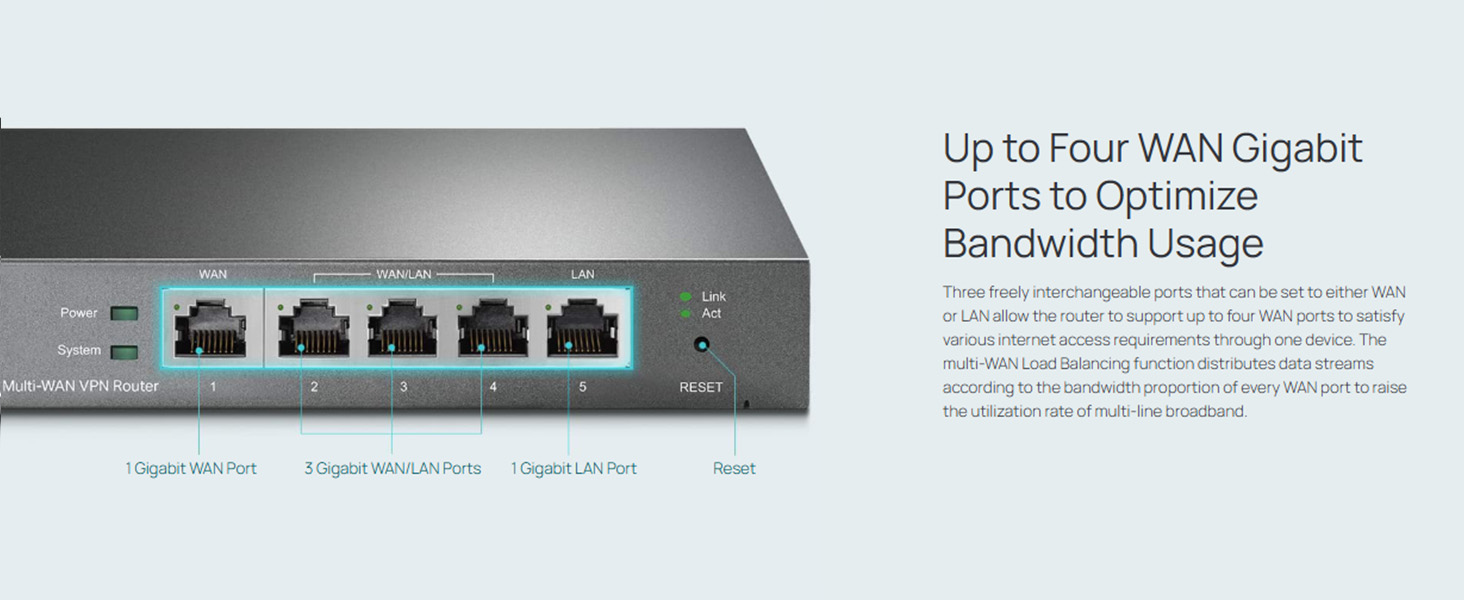
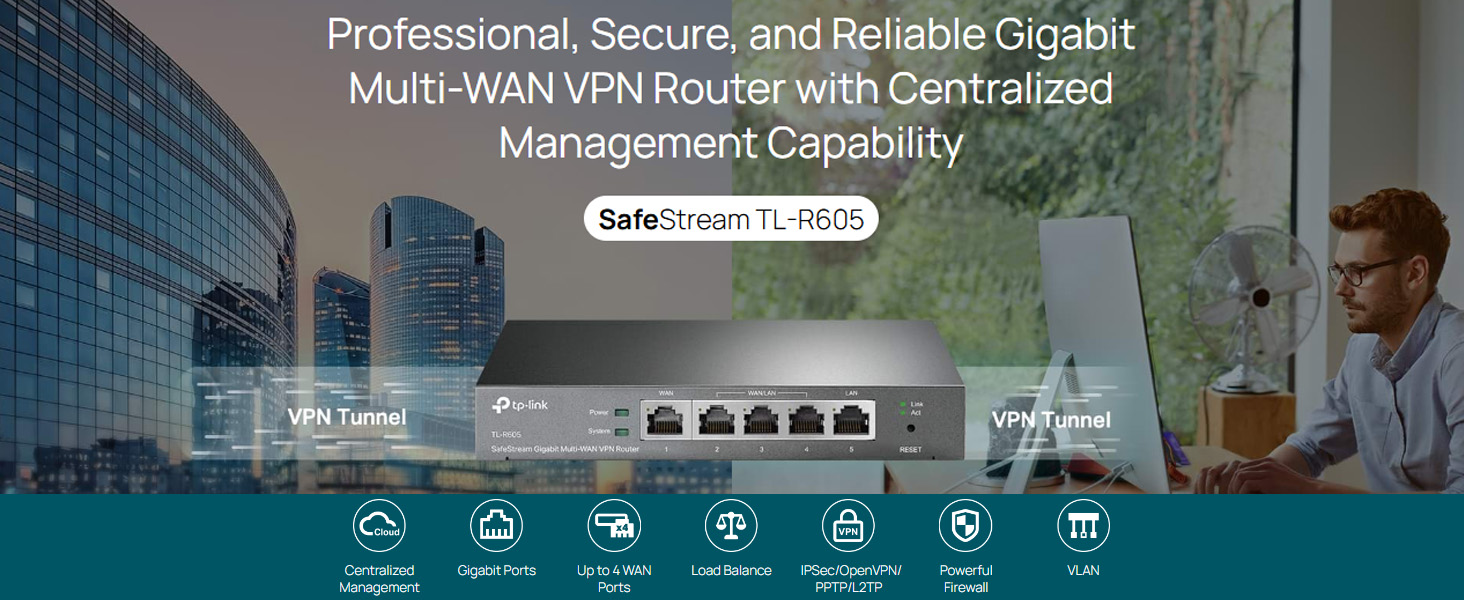
The TP-Link ER605 (TL-R605) is a high-performance wired VPN router featuring up to 3 gigabit WAN ports with load balancing, integrated Omada SDN cloud management for zero-touch provisioning, and robust security supporting up to 20 VPN tunnels. Designed for SMBs and professionals, it delivers reliable 1000 Mbps speeds, advanced firewall protection, and lightning surge resistance, making it an ideal choice for stable, secure, and scalable network environments.


| ASIN | B08MH4VLR3 |
| Antenna Location | Home |
| Antenna Type | Internal |
| Best Sellers Rank | #2,875 in Computers & Accessories ( See Top 100 in Computers & Accessories ) #32 in Routers (Computers & Accessories) |
| Box Contents | Gigabti VPN Router ER605,Power Adapter,RJ45 Ethernet Cable,Quick Installation Guide, |
| Brand | TP-Link |
| Brand Name | TP-Link |
| Colour | gray |
| Compatible Devices | Personal Computer |
| Connectivity Technology | Wi-Fi |
| Control Method | App |
| Controller Type | App Control |
| Country of Origin | India |
| Customer Reviews | 4.1 out of 5 stars 3,259 Reviews |
| Data Transfer Rate | 1000 Megabits Per Second |
| Frequency | 5 GHz |
| Frequency Band Class | Single-Band |
| Global Trade Identification Number | 06935364089597 |
| Has Internet Connectivity | Yes |
| Has Security Updates | Yes |
| Importer Contact Information | TP-Link India Private Limited Office No.1, Tower 2, Level 2, Raiaskaran Tech Park, Andheri Kurla Road, M.V Road, Andheri East-400072 Contact: Toll Free 1800-209-4168, [email protected] |
| Is Modem Compatible | Yes |
| Item Dimensions L x W x H | 26L x 19W x 6H Centimeters |
| Item Type Name | VPN Router |
| Item Weight Unit of Measure | 1.45 Pounds |
| LAN Port Bandwidth | 10/100/1000 Mbps |
| Manufacturer | TP Link, TP-LINK |
| Manufacturer Contact Information | TP Link |
| Maximum Upstream Data Transfer Rate | 1000 Megabits Per Second |
| Model Name | TL-R605 |
| Model Number | ER605 |
| Number of Ports | 4 |
| Operating System | Microsoft Windows 98SE, NT, 2000, XP, Vista or Windows 7/8/8.1/10 MAC OS, NetWare, UNIX or Linux |
| Other Special Features of the Product | Remote Access |
| Packer Contact Information | TP-Link Technologies Co., Ltd, South Building, No.5 Keyuan Road, Central Zone, Science & Technology Park, Nanshan, Shenzhen, P.R. China |
| RAM Memory Installed | 5 MB |
| Router Firewall Security Level | True |
| Router Network Type | Wired |
| Security Protocol | WPS |
| Special Feature | Remote Access |
| UPC | 767531887493 |
| Unit Count | 1 Count |
| Voltage | 9 Volts |
| Warranty Description | 3 years Domestic warranty |
| Wireless Communication Standard | 802.11a, 802.11b |
| Wireless Compability | 802.11a, 802.11b |
J**G
Reliable and Fast – Perfect Router for My Small Office Setup
I’ve been using the TP-Link ER605 for a few months now, and it has been rock-solid since day one. I got it to upgrade the network stability in my home office, and I’m really happy with how it performs. The setup was quite straightforward, especially with the Omada Controller, which makes managing the network super easy. I can monitor everything in one place, and the interface is clean and simple to use—even if you're not super technical. One of the biggest reasons I bought this router was for its load balancing and VPN support, and it delivers exactly as promised. I have two internet connections, and the ER605 handles both seamlessly, automatically balancing the traffic and switching if one connection drops. This has been a huge help during Zoom calls or while transferring large design files. Security-wise, it has all the features I needed—firewall, VPN, DoS protection, and more—and everything runs smoothly without slowing down the speed. I’ve also noticed it runs cool and has a solid build quality.
T**R
Works well with well balanced Dual WAN
First, I reall wished to buy a gigabit WAN router for future proofing but all ISPs commonly have a 100mbps max connection speed. My home of office LAN is all with gigabit Ethernet. This router is well made, solid metal build. Setup was a breeze. I'm using this with one static IP connection & the second with a PPPoE ISP. With load balancing that helps bandwidth aggregation. Works well without any packet loss. Recieved a newly made product dated April 2019 V6.0 but firmware updates ended until June 2018. Will post a follow up review a month later. Update: (June 2020) a year later..... Recently recieved a 2020 firmware update last month. Router has been very functional and link aggregation has been working great. I've been using Airtel xstream, ACT Fibernet & Excell broadband with different protocols each like DHCP, PPPoE & Static IP configurations. Only drawback is that the link speed limit is only 100mbps which isn't helpful for future use if I get a faster internet plan ( 50+40+40mbps currently). I can recommend this router for internet users who don't have current plans of not greater than 25-40mbps.
V**U
Good for home network and connecting multiple internet connection
Good product . need to know how to setup before buying . online videos are not available for complete setup . it can be used with omada controller - software and hardware . but it was not connecting with software omada controller and no proper tutorial on how to connect or what was the issue . but product is good . had option of connecting USB dongle as one Internet connection . so total 3 WAN ( 2 dedicated , 1 LAN/WAN ) + 1 USB WAN . i hav tried 3 WAN. but usb need to check . my question is can we have total 4 connected and can we use all 4 as WAN input .
C**S
Basic Load Balance Router for Multiple Internet Connections
We have configured 3 Internet Connections into this router (ACT, Jio AirFiber and Airtel DSL) and the router is working flawlessly to split the traffic among the connections as per the defined splitting ratio we have set. The router cannot accurately determine when a particularly ISP goes down (mostly because the Router is connected to the Routers provided by individual ISPs and the ISPs have denied pass-through configuration, but by and large it works. The CPU seems under-powered and torrenting by even a single computer makes the CPU usage jump to 100% and service very slow for other users on the network. The router also does not remember the traffic statistics and resets to zero after every restart (for example after power failure). Its easy to configure DHCP settings and DHCP assignments, but I did not see an option to re-direct domains. I may have to set-up a PI-HOLE server using a Raspberry Pi for that.
A**2
DO NOT BUY TP-LINK TL-R470T+ ONLY SUPPORT 100Mbps - Useless Device
Please do not buy TP-LINK TL-R470T+ IT IS A USELESS DEVICE AS THEY HAVE NOT MENTIONED THE MAX SUPPORTED SPEEDS ARE 100Mbps ONLY AND NOT BEYOND. CURRENT INTERNET SPEEDS GO BEYOND 100Mbps AND THIS SMALL HOME OR BUSINESS ROUTER IS USELESS SINCE PEOPLE ONLY USE IT TO COMBINE AND MAKE SPEEDS BEYOND 100MBPS. PLEASE BUY A HIGHER MODEL WHICH SUPPORTS ATLEAST 500Mbps or 1000Mbps. I am currently running plans of 300Mbps from 3 Internet Service Providers but the maximum speed i get because of this useless device is less than 100Mbps.
A**A
Load Balancing.
Lag of 15 - 20 seconds while switching the networks in case of load balancing.
K**N
Best router at this price.
I am a network professional and this box is too good for its price. It does perfect load balancing. I have two 150MBPS WAN links and it gives a throughput of 300 MBPS. Its not limiting to 100 MBPS under load balancing as reported by some users. May be its a new firmware. Fail over also happens smoothly within 10 seconds.Only drawback is the box is slow. It takes five minutes for the router to be up from cold start and any dynamic changes in the policy takes close to 60 secs before being implemented. Best to go for home set up.
P**O
Must have for Multiple ISP Connections at home or small office
TLDR one-line review: If you have or want multiple ISP Broadband at home and want automatic failover when one link fails, this device is your answer. The rest is going to be a rather long review. It is meant for techies. I advise everyone to read so as to understand WHAT THE HELL is this device. I need to explain my setup for this and why this device was required. Preamble ======= First, have a look at my SOHO network map diagram (last pic). I have a lot of devices AND I PREFER WIRED ETHERNET network. Earlier I had Airtel Xtreme Fibre connection ₹799/mo plan, 100 Mbps Down/Up. Then one day the network went down and was off for 5 days consecutive. I am an IT contractor working from home and for those 5 days, I had to work from my in-laws' home because I paid by the days I work. It was then I decided that I need a backup. So I applied for BSNL FTTH (100 MBps plan) and it was installed. Now, my next question was how to do automatic failover. How to do load balancing (not that I needed that)? Can I combine the two ISPs to get more speed? I research and I got the answer - Tp-Link Omada ER-605 Gigabitt Multiwan router. THE GOODIES =========== 1. Gigabit is a must otherwise network speed above 100 Mbps is curtailed. Check. 2. The router must be able to connect to at least 2 ISPs. This one has one dedicated WAN port and four more RJ-45 ports, 2 of which can be configured as WAN. In addition, it can accept a USB modem with SIM, etc. Check. 3. It can do automatic failover. Check. 4. It can do load balancing. Check. 5. It can distribute internet connection and thereby upping the speed in theory. But note that it won't combine the two 100 Mbps plan into a 200 Mbps circuit. So there. 6. It can do MAC-ID based address reservation (assign static IP to certain devices). I have assigned static IP to my Linksys Wifi Repeater/Extender, NAS and Brother Laser Printer. Check. I have connected the devices as follows: a) Airtel Xtreme Router ==> ER-605 b) BSNL FTTH Router ==> ER-605 c) ER605 ==> Netgear Gigabit Switch d) Netgear Gigabit Switch to Home Ethernet Network. Now I am fully satisfied. I tested all features including link failure (I popped out the input cable from ER-605). Happy to report everything worked fine. HOWEVER ... ========== There is always a however, isn't it? 1. First of all the ER-605 must be configured and setup. 2. By default only one WAN port is enabled. We must enable the other WAN ports. 3. You must set up and enable Load Balancing, define the primary link and secondary link and Failover (Enable backup link when any primary WAN fails). 4. The default router address is 192.168.0.1. You may need to change it. I had to change it to 192.168.1.1 because my existing devices, especially the printer were with static IPs in 192.168.1.xxx. This is done from ER-605 page --> Network --> LAN 5. You will most certainly have to change the LAP IP address of the ISP routers on a different subnet; if you don't you can never access them. I changed the LAN IP address of the Airtel router to 192.168.0.1 and the BSNL router to 192.168.2.1. - Now I can access ER-605 via http://192.168.1.1 - To reach the Airtel router I type http://192.168.0.1 in the browser - It is http://192.168.2.1 for BSNL router It takes time and patience. As usual router box does not contain a guide (cost cutting, green initiative and all that). The online manual is confusing and even misleading at times. I had to depend upon YouTube videos even though I am fairly competent at Networking and setup (my full home network is set up by me). Some basic setups for Load Balancing and Failover ======================================= 1. Log in to the ER-605 page (https://192.168.0.1; I changed this and for me it is 192.168.1.1) 2. Network --> WAN. WAN port is already enabled. Enable the second WAN1 port. Connect the second ISP router to this port. Router will reboot. 3. Click Transmission --> Load Balancing ... a) Basic Settings Tab: Check the "Enable Load Balancing" option only. Leave all others unchecked. ... b) Link Backup Tab: Create a rule and select Primary and Secondary connections. For me, it was WAN = Primary, WAN/LAN1 = Secondary/Backup. Mode = Failover(Enable backup link when all primary WANs fail). Enable Check box = Ticked. ... c) Online Detection Tab: You will see both WANs. Click on the edit icon of each and set Mode = Auto for both. (For some weird reason, it was setup to "Always Online").
Trustpilot
3 weeks ago
2 weeks ago