Desertcart purchases this item on your behalf and handles shipping, customs, and support to Portugal.
🚀 Upgrade your workflow with Samsung 860 EVO – speed and reliability that keep you ahead!
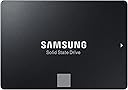
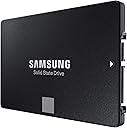
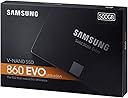
The Samsung 860 EVO 500GB SATA 2.5-inch SSD delivers up to 550 MB/s sequential read and 520 MB/s write speeds, transforming everyday computing with rapid data access and silent operation. Designed for mainstream PCs and laptops, it offers broad compatibility, a compact form factor, and robust endurance backed by a 5-year warranty, making it the go-to upgrade for professionals seeking faster load times and dependable storage.


| ASIN | B078WQT6S6 |
| Best Sellers Rank | 14,628 in Computers & Accessories ( See Top 100 in Computers & Accessories ) 99 in Internal Solid State Drives |
| Box Contents | ssd |
| Brand | Samsung |
| Brand Name | Samsung |
| Cache Memory Installed Size | 512 |
| Color | black |
| Compatible Devices | Laptop, Desktop |
| Connectivity technology | SATA |
| Customer Package Type | FFP |
| Customer Reviews | 4.8 out of 5 stars 78,310 Reviews |
| Data Transfer Rate | 550 Gigabits Per Second |
| Digital Storage Capacity | 500 GB |
| Digital storage capacity | 500 GB |
| EU Spare Part Availability Duration | 5 Years |
| Enclosure Material | Solid State |
| Form Factor | 2.5-inch |
| Global Trade Identification Number | 08806088936017 |
| Hard Disk Description | Solid State Drive |
| Hard Disk Form Factor | 2.5 Inches |
| Hard Disk Interface | Serial ATA-600 |
| Hard Disk Rotational Speed | 7200 RPM |
| Hard disk form factor | 2.5 Inches |
| Hard disk interface | Serial ATA-600 |
| Hard-Drive Size | 500 GB |
| Hardware Connectivity | SATA 6.0 Gb/s |
| Hardware Platform | PC |
| Installation Type | Internal Hard Drive |
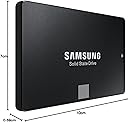
| Item Dimensions L x W x Thickness | 10L x 7W x 0.7Th centimetres |
| Item Type Name | Samsung 500 GB 860 EVO Sata III 64L V NAND Solid State Drive |
| Manufacturer | Samsung |
| Manufacturer Part Number | MZ-76E500B/EU |
| Media Speed | 520 |
| Model Name | MZ-76E500BW 860 EVO |
| Model Number | MZ-76E500B/EU |
| Network Connectivity Technology | SATA |
| Number of Items | 1 |
| Product Features | Portable |
| Product Warranty | Warranty Period 60 Months. Warranty period varies by model. For details about Samsung products specific warranty terms and conditions please visit the Samsung website; semiconductor; minisite; ssd; support; warranty |
| Read Speed | 550 Megabytes Per Second |
| Special feature | Portable |
| Specific Uses For Product | General-Purpose Computing |
| Unit Count | 1.0 count |
M**T
Samsung SSD 860 Evo 1 TB SATA3 - The best consumer 1TB SATA SSD - Great for Playstation 4 as well
Samsung SSD 860 Evo 1TB SATA3 When it comes to SATA3 SSD’s, there were only 2 brands for me which I looked at – Samsung and Crucial. This time I opted for this Samsung SSD 860 Evo 1 TB SATA3 to replace a standard HDD as a secondary drive in my laptop – there was already a Nvme SSD as a primary drive for system, etc, but I was fed up with speeds of traditional HDDs. Installation was super easy – I simply replaced a HDD with SSD. Nothing complicated at all – just swap and connect. After powering on, my computer detected SSD without any issues and the only thing required was to format it to to desired format. All done within 30 minutes. Did the swap change anything? Abuslutely yes. My games load several times faster, searching my photo collection is superfast as well as access to my music library. Video editing, encoding and audio editing are absolutely hassle-free. SSD does not also generate any noise and generates less heat, especially with normal usage. I tested my Samsung 860 Evo with AS SSD and CrystalDiskMark – results are great, as expected (disk is half full/half empty) - please see the photos attached. A few details about Samsung 860 Evo 1TB SATA3 (different models may have different specs): - NAND: Samsung V-NAND TLC (aka. 3Bit MLC) - Controller: Samsung MJX Controller - Cache: 1GB LPDDR4 - 5 years warranty or 600TBW - SATA3 Would I buy it again? Absolutely yes. I cannot imagine going back to HDDs, especially not for tasks I use it for. I used Samsung SSD 840 Pro previously, so I knew what to expect from Samsung SSDs (although I could not justify spending extra for Pro series this time). I understand that the price of this disk has not changed for years nearly at all, but the reason for is that it is probably the best SATA3 SSD, which can be purchased. It is also a great disk for PS4/PS4 Pro, although neither Xbox One nor Playstation 4 make a full use of SSD technology. Loading times are still better though, sometimes cut by half. Tested with PS4 Pro out of curiosity. 10/10 score and full recommendation. Warning: Please do not make a mistake and do not buy Samsung QVO SSDs unless you are absolutely sure you want QVO series for some, unknown to me reason. They can be slightly cheaper (but sometimes can even be slightly more expensive), but their performance and reliability due to use of QLC NAND in comparison to Evo and Evo Plus (TLC NAND) is a lot worse. They are still good SSDs in comparison to other brands QLC SSDs but in my opinion there is no reason to buy them as Evo SSDs are a lot better and for similar price.
H**C
Much easier to install than I thought
I have a 7 year old Dell XPS 8300 Desktop PC with a 1TB HDD which I wanted to breath new life into by installing an SSD to improve boot, file and program load times. I wanted to make the SSD the system/boot disk and relegate the old HDD to secondary large volume storage. I needed a 2.5" to 3.5" mounting frame to allow me to install the new 2.5" SSD in a 3.5" bay inside the PC. There are so many choices of adapter available on Amamzon and I eventually chose this one https://www.amazon.co.uk/gp/product/B075FH3KTT/ref=oh_aui_detailpage_o00_s00?ie=UTF8&psc=1 You will make your own choice but even though I was only installing a single SSD, this adapter allowed me to add a second in the future if I wanted. I have done a separate review for the adapter, it was a very good choice for me. I was initially a little hesitant beforehand about attempting the install, but it turned out to be much more straightforward than expected. After disconnecting the power from the PC, I screwed the SSD to the base of the adapter then the adapter into the drive bay beneath the existing HDD (all screw holes lined up), then connected the SATA cable (provided with the adapter) to the SSD and motherboard SATA port and then the power cable (there was a spare connected power cable already inside the PC which I used, but there are also two supplied with the adapter) to the SSD. That was it in terms of physical installation. I powered up the PC and then used Samsung's Data Migration software downloaded from their support website (details come with the SSD). Samsung will recommend you clone the SSD by first connecting it externally using a SATA to USB adapter, but although this would be necessary with a Laptop, as long as you have space in the 3.5" bay to install the SSD and the original HDD (true for most desktops) my method will be faster and less fiddly. I made sure that I either deleted or moved to external backup all data (non system) that wouldn't need to be on the new SSD so that my 1TB HDD had a lot less than 500GB (in fact It was less than 100GB as I archived most of my non system data offline). I then ran the Samsung Data Migration tool to clone my HDD to the SSD. The time it takes depends o how much data to clone, but for me it was fast. When the clone finished successfully, I restarted the PC and using F2 key (different for various PC's) immediately at start up let me into the system BIOS. Here you need to reset the boot sequence so that the new SSD is number one for boot. After saving this in the BIOS and exiting, the PC booted up from the new SSD in about 1/10th of the previous time. Once happy everything was stable, I reformatted the old 1TB HDD which is now holding any large volume data that I don't need the high performace of the SSD for. As I said, boot time has reduced significantly and program/file load times are rapid. I'm very happy with my 'new' PC, and hopefully won't need to hit my bank balance for a replacement PC any time soon. Highly recommended upgrade for your PC, and it's also worth checking that you have sufficient RAM as that is just a 10 minute plug and play exercise.
A**T
Gives new life to an elderly laptop
Okay, so this will be a review of the 1Tb Samsung 860 EVO SSD and how to clone the drive. First some background. I had a 13-year-old VAIO laptop that was running Windows 7 (from a clean install). The laptop gradually got slower and slower (you know the 3-5 mins to boot up, 2-3 mins to shut down kind of thing) so I decided to go the SSD route. Initially upgraded the laptop with a 500Gb Crucial MX500 SSD but then saw a good offer for the 860 EVO. The Crucial SSD had Windows 10 on (clean install using the Windows 7 key) and all of my usual programs (M$ Office, Gadwin Print Screen, VLC Media Player) and my WiFi printers configured so all I needed to do was clone this drive to the new Samsung Drive. Plugging the 860 EVO into an external USB interface allowed me to clone the MX500 to the 860 EVO. I have used Acronis True Image for years but encountered a problem last year where it wouldn't detect a second internal m.2 SSD in another laptop and I was directed to use Macrium Reflect 7 (which is free). No problem sorting out the m.2 cloning. Anyway, back to the 860 EVO. Macrium Refelect allows you to easily (using drag and drop) to move the partitions from one drive to another. This is important if upgrading from a smaller to larger hard drive - and this is why. If you make sure that the C: drive (or whatever drive/partition is to be used for data) is the LAST partition (i.e. the right-most one) with empty unallocated space to the right, you can extend the partition (either during the cloning procedure or later on in Disk Management) which enables you to use the whole of the new drive (i.e. you are able to use the extra space that you've paid for). IMPORTANT: Before undertaking the cloning procedure, use Macrium Reflect to make a Rescue Disk *FIRST* This will enable you to sort out a boot problem if after cloning you find that your new SSD won't boot. (go to Backup Tab. Click on the 'Other Tasks' tab, click Create Rescue media --> select your device (CD/DVD or USB) --> 'Advanced' --> Click on 'Choose Base WIM' tab, click on 'Windows 10 PE (WADK)', click 'OK' click 'Build'. This puts a 'lite' version of Windows on the rescue media (Windows PE for those interested) and the various drivers for your pc. One final note, it takes quite a while to make the Rescue Media so be patient! Cloning: To clone the MX500 to the 860 EVO took around 45 mins in total. Swap the drives over (the internal MX500 --> external USB and the 860 EVO --> internal) and re-boot. It *should* boot into Windows fine. If not, shut down the pc, insert your rescue media (see above) and boot from the rescue media into Macrium Reflect (note this may take several minutes of looking at a black screen!) Once booted, select the 'Restore' tab then 'Fix Windows Boot Problems'. I bought two of these 1Tb 860 EVO SSDs - one cloned without a problem and happily booted into Windows at the first attempt whilst the second (in a different machine) needed the 'Fix Windows Boot Problems' noted above. Now to the drives themselves. They are fast(*) and have a large capacity. You can download (from Samsung) the SSD Magician software which allows you to monitor the state of the SSD and optimise it for your use. *DON'T use this software to clone your existing drive* Make sure that you click on 'Over Provisioning' in the Magician software and set the OP to 10% (this will increase the life of the SSD dramatically). *Benchmarking this drive (using Crystal Disk Mark) showed that the main 'bottleneck' was the interface in these older laptops - so you won't get the advertised 550/520 MB/s speeds - except in recent pcs that use the SATA III interface. Both the Crucial MX500 and 860 EVO topped out at 284/266 MB/s which is about right for SATA II. Whilst this is a review of the 1Tb Samsung 860 EVO, I have given detailed instructions as to how to clone your existing installation to help others. There's not much to say about the drive itself other than it is large and fast and I can thoroughly recommend it.
C**.
Great SSD on a sale
Overall a good SSD and the improvements are insane. Came quick through the post and the speeds are all top notch. I am a newbie when it comes to these sort of stuff so I didn't realise you needed a sata cable alongside with the ssd so either make sure you have a spare in your case or buy a new one. Instantly feels like a new pc and boots up windows really quick. I used the data migration tool to transfer most of data from my HDD to the SSD and was really easy and simple, although I found it tricky to pick certain files I wanted to keep and its interface was confusing at first. Games see a massive improvements in load times and in some games in helped with the stuttering I had due to me only running 8gb ram set. Again this doesn't apply for all games only a select few had their stuttering issues disappear when playing watch dogs 2, Kingdom come deliverance and Black ops cold war. Now I got this ssd on a sale for £52. Its definitely worth the price however, if this isnt on sale or retailing at its msrp of £99 then your probably better off getting any cheaper models such as crucial mx500 or bx series. Yes it is from samsung which historically I known to have better build quality and better endurance but usually SSD only last for 5 years before you need to change them. So I say pick this up if this is on a sale if not just go for the cheaper companies. The difference in speeds are hard to see in the real world and more and right now just does not justify the extra £40 compared to its cheaper competition. If its on a sale grab one as personally Samsung products are better in build quality and offer better endurance for the long haul but at £99, your better off getting more storage capacity from a different company at the same price.
S**R
Needed a bigger SSD.
My 6 year old OCZ Vertex 4 (with only 128GB capacity) has served me absolutely flawlessly, but I just needed more space. My previous SSD was plenty fast enough, so I mainly bought this for the higher capacity. I installed it to the motherboard with an old, but well made and previously unused, SATA1 cable. I did a bit of research beforehand, and basically you don't need a special SATA3 cable to get full SATA3 speeds (but if you do run in to a problem using an old cable, a new cable is probably the first thing you should try). From there, I entered Disk Management in Windows and Initialised the new drive with GPT (use MBR if you want better backwards compatibility with older systems). You need to do that, otherwise the drive will not be recognised in Explorer. I then downloaded Samsung Magician by mistake. I wanted Samsung Data Migration instead. While I was in Samsung Magician though, I read the warning that my firmware was out of date, so I updated it at the click of a button and a restart. While browsing in Samsung Magician I noticed you can also "set aside" some room on the SSD to prolong its life, and I decided to sacrifice 5% for this purpose. After switching to the Samsung Data Migration tool, it automatically identified my old SSD and my new SSD and cloning the drive was done quickly and easily - no configuration needed. The only thing you need to do, as the software says, is close any running programs (like antivirus, nVidia control panel, game updaters, browsers, documents etc). I'm actually surprised (and was quite nervous) that it could clone a live system. I was expecting to have to boot via USB and clone from the cloning program's user interface. That's the way I have cloned drives before, and it's far less user friendly. I'm glad this Samsung tool worked so well, and that it was so easy to use. After the clone was complete, I went in to my UEFI Bios and changed the boot order to the new Samsung SSD, and it booted perfectly from the Samsung. It's great looking at all that extra space! After that, I simply formatted my old SSD, so now it's completely blank, and I'll use it for additional storage. I did some benchmarks to make sure things were OK. I'm getting much better Sequential Read and Write speeds - 562 MB/s read and 531MB/s write - which is like a full 100MB/s faster than my old SSD (which I still consider really quick!). Random Read and Writes are about 100MB/s slower though, and I'm not sure if that's because the drive is bigger and has more space or what. I might do some more investigation in to that, with some googling and maybe a SATA cable swap. It's not urgent, the system feels just as quick as before, no noticeable slowdown or speed up - I just have loads more space now!
J**N
Very fast drive, but as 2nd drive, Samsung makes it less easy
The product itself is fine, as expected. Installing this as a 2nd drive (already have Samsung 1TB as C:\) was less predictable. Plug it in with expected cables, reboot, go to Disk Management (Win Key + X) and select drive, format etc. Download Samsung Magician software (from Samsung) and run - it should recognise drive...........if not, uninstall, reboot. Turn off ALL antivirus\firewall\security monitoring apps, then reinstall it - software needs to check with (Samsung) base to verify disk is kosher. Reboot. If the SSD is still not recognised, go to Intel's website, as directed by the message given in Magician, and download the suitable Intel SATA AHCI Controller drivers - (spoiler) - this is a real nerd's website, so plenty of heavy duty reading to get correct drivers. Download these to your PC, unzip and remember where you have put them........now Win Key + X again, go to Device Manager, 'IDE, ATA\SATA controllers, expend this to see what is listed; right-click to Update Driver, Browse My Computer to where your shiny new Intel Drivers have been unzipped and install them. Reboot yet again. Run Samsung Magician, it should now 'see' your disk, so you can play with the options, i.e. Rapid Mode can be enabled (but only on 1 SSD per PC) and Trim enabled, also Performance Benchmark. Magician may also suggest Firmware update for the SSD, if necessary. It took me hours to get the Magician software to recognise the SSD and I cobbled together my tips from those gleaned from several websites, forums on the 'net, so hope it can help someone else. For my setup, a decent purchase to keep all my Steam games separate as they take up so much room on main drive.
A**B
Upgrade Your Computer's Speed and Reliability with the Samsung 860
The Samsung 860 EVO 250 GB SATA 2.5 Inch Internal Solid State Drive (SSD) is a reliable and efficient storage solution that delivers impressive performance. This SSD is ideal for those who are looking for an upgrade from a traditional hard drive or need to replace their existing SSD. One of the key features of the Samsung 860 EVO is its speed. It offers faster read and write speeds than most traditional hard drives, which means that users can enjoy faster boot times, application loading, and file transfers. The SSD is also built with Samsung's V-NAND technology, which offers improved endurance and reliability. The 250 GB storage capacity is suitable for everyday use, whether it's for personal or professional purposes. Users can store their operating system, programs, and files without worrying about running out of space. Additionally, the 2.5-inch form factor makes it easy to install in a desktop or laptop computer. The Samsung 860 EVO also comes with a range of useful features, including hardware encryption, which provides enhanced security for sensitive data. It also comes with Samsung's Magician software, which allows users to monitor and optimize the performance of their SSD. Overall, the Samsung 860 EVO is a solid choice for those who are looking for a reliable and efficient storage solution. While it may not be the most cutting-edge SSD on the market, it offers a great balance of speed, capacity, and reliability at an affordable price point.
J**V
Very impressive performance
Was a little dubious before purchasing, as there is usually too much hype surrounding these types of disks. HOWEVER, cast away any doubt you may have !! Adding one of these units is like upgrading from a nissan micra to a ferrari !! I was about ready to throw my PC in the bin, as the original platter based HDD were getting slower and slower with the frquent windows 10 update ( no issues with Windows 7 ... ) . Given that my machine has an 8 core AMD Black edtion CPU with 32GB ram, this was clearly annoying. It got to the point where it take several minutes to bring up the login screen. Once logged in, the disk drives were going flat out and unresponsive for at least 10 minutes ( go and make a cup tea literally and another one to follow) . Apps were then slow to respond. Being a developer, many of the development tools were taking several minutes just to OPEN.... Thought I would replace the Windows drive with one of these SSD from Samsung, as a last ditched desperate measure. UNBELIEVABLY IMPRESSIVE !! The machine now responds faster than I can. Whole thing boots up in under 2 minutes ( BIOS is the slow aspect now, as that takes over a minute) . Once logged in, the machine responds instantly , certainly faster than I can. The apps now open up instantly. The developer apps that used to take several minutes, now open in under 3 seconds and are responsive immefiately. Wooo Hoo . NOTE - You only need to replace the windows Boot drive for the performance gain. All my apps still run on a separate platter based HDD. Just proves that it was the OS that was causing the bottle neck ( that is windows 10 for you ) As a measure of metrics, copying a very large file ( 7.5GB ) from a hard disk drive to the SSD achieved sustained transfer speeds over 200MB/s , with a total transfer time just under 50 seconds. However, on repeated copies of the same file, the transfer speeds demonstrated significant improvement, which would suggest a level of read buffer/caching implementation. The second copy of the same file took 20 seconds. I am definitely buying a few more of these.
S**R
Perfect ssd
Good ssd
J**S
Endlich funktioniert mein Laptop wieder.
Also ich fang mal damit an wie ich dazu gekommen bin mir eine SSD Festplatte zuzulegen. Ich bin persönlich bin momentan 14 und als ich 13 war wollte ich unbedingt einen „Gaming Laptop“ nicht nur für die Schule sondern auch natürlich um mal was drauf zu spielen. Ich habe dann einen Laptop bekommen der relativ günstig war im Gegensatz zu anderen Gaming Laptops (um die 400€) aber eigentlich alles hatte (Guten Prozessor (Intel Core i5 7.G) Grafikkarte(Nividia GTX 1050)) nur damals wusste ich noch nicht das die Festplatte doch eine wichtige Rolle spielt. Es war eine HDD verbaut die sogar Geräusche machte. (Ist mir nach dem Einbau der SSD aufgefallen) Und nach einiger Zeit ist mir aufgefallen das der Laptop andauernd abstürzt. Minuten dafür braucht nur um hochzufahren. Updates dauerten Stunden. Ich war schon so verzweifelt das ich schon für einen neuen Laptop oder PC sparen wollte. So machte ich mich Schlau und nach kurzer Recherche fand ich heraus das eine HDD extrem langsam ist im Gegensatz zu einer SSD. Jetzt war klar ich möchte eine SSD anstatt eine HDD in meinem Laptop verbaut haben da die Bewertungen und Forums klar dafür sprechen. Jetzt wusste ich aber absolut nicht wie das ist diese zu klonen und einzubauen. Nach 2 YouTube Videos dachte ich mir so schwer kann es nicht sein. Ich nahm meinen Mut zusammen den ich durch die 2 YouTube Videos gewonnen habe wo es so einfach dargestellt wurde und bestellte für ca. 37€ Samsung SSD (250GB) + 10€ SATA zu USB Kabel (um die HDD auf die SSD zu klonen). Das Zeug kam schnell an und ich fing sofort an mit dem Klonen was mit einem Programm Download extrem einfach war. SSD am Laptop mit dem SATA zu USB Kabel angeschlossen. Das Programm für das Klonen geöffnet. 30 Minuten gewartet und der Laptop startete wieder neu und alles war jetzt auf der SSD. Ich nahm meinen Laptop zum ersten Mal auseinander was auch viel einfacher als vorgestellt war. Ich sah sofort nachdem ich den Laptop Boden aufgeschraubt habe die HDD Festplatte und schraube sie mit 8 Schrauben einfach vorsichtig aus und schiebte die SSD rein. Schraubte alles wieder zu. Und machte den Laptop an und Wow! Mir viel sofort auf wie schnell der Laptop jetzt startet! Normalerweise wartete ich wie gesagt Minuten aber diesmal waren es 9 Sekunden! Neustarts und alles andere worauf ich immer warten musste einfach schnell und ohne Probleme. Keine Abstürze mehr nichts! Und jetzt zu dem Geräusch meiner HDD. Mir ist schon immer aufgefallen das mein Laptop ein paar komische Geräusche macht. Was das aber ist wusste ich nie da ist wie gesagt mich nicht sogut auskenn. Aber Nachdem die SSD eingebaut war , war das Geräusch aufeinmal weg. Dieses komische Kratzige Geräusch endlich weg. Und nachdem ich das Festgestellt hab das mein Laptop jetzt einwandfrei funktioniert und das eklige Geräusch weg war, war ich einfach nurnoch Glücklich. Fazit: Euer Laptop/PC geht euch auf die Nerven da er einfach Langsam ist? Euch fällt auf ihr habt eine HDD Festplatte verbaut? Kauft euch diese Samsung Evo SSD und euer Laptop/PC Leben wird sich verbessern. Klare Kaufempfehlung!
A**W
Ssd
Fonctionne parfaitement
J**E
No Hard disk in the original box
I received the box of my Samsung 860EVO and i'm really not happy about it. There is no hard disk in the original box, but I have two playing card in chineese in this box. That's really not funny. I was preparign my computer today to change the hard disk. Here is a message to the appropriate people of this company. Somebody in this compagny replace the hard disk in the box to put playing card and keeping the hardikd for him. It was a big inconvenient for me.
S**E
Solide SSD mit viel Leistung fürs Geld
Die Samsung 860 EVO 1 TB ist nach wie vor bei mir im Einsatz und überzeugt auch nach längerer Nutzung durch starke Performance und Zuverlässigkeit. Sie arbeitet effizient, bleibt im Alltag schnell und stabil – ganz gleich ob beim Booten, Laden großer Dateien oder beim täglichen Arbeiten. Wer aktuell eine gute, bewährte SSD sucht, aber nicht übermäßig viel Geld investieren möchte, bekommt hier ein ausgezeichnetes Preis-Leistungs-Paket. Für das Gros der Anwendungen (Office, Medien, Spiele, Systemlaufwerk etc.) ist die 860 EVO mehr als ausreichend und eine klare Empfehlung.
Trustpilot
4 days ago
2 months ago