🎞️ Digitize your analog memories with pro-level precision and zero dust drama!
The Plustek OpticFilm 8200i SE is a premium 35mm film and slide scanner offering ultra-high 7200 dpi resolution and 48-bit color depth. Its integrated infrared dust and scratch removal technology ensures pristine scans without manual editing. Bundled with SilverFast SE Plus 9 software, it supports both Mac and PC platforms with 64-bit compatibility, making it ideal for professionals and enthusiasts digitizing analog archives with exceptional detail and dynamic range.


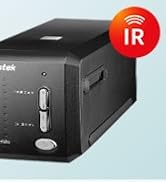







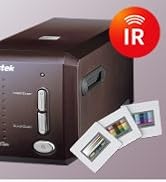




| ASIN | B008ASJ2Z8 |
| Best Sellers Rank | #78,758 in Office Products ( See Top 100 in Office Products ) #49 in Slide & Negative Scanners |
| Customer Reviews | 3.9 3.9 out of 5 stars (851) |
| Date First Available | August 6, 2012 |
| Is Discontinued By Manufacturer | No |
| Item Weight | 3.52 pounds |
| Item model number | 8200I SE |
| Manufacturer | Plustek |
| Product Dimensions | 4.72 x 10.71 x 4.69 inches |
K**H
Excellent for the money, though a bit slow to scan
I've done a few hundred slides and negatives with this unit and the quality of the scans and the ease of use are really great. The SilverFast software is a nice bonus, but needs simpler documentation to use. First, there is no need to use most of these features if you have a photo editing software you like better, like Photoshop. The editing you can do in post (once scanned) should probably be some in some other software. Just use SilverFast to get the quality scan and do the rest elsewhere, IMO of course. 1 - Set the scan dimensions you want, name (SilverFast automatically increments the name, it will not overwrite), ppi, etc. The Format is a bit odd as it sometimes looks like it is giving you less resolution at a larger size, but it really isn't. My suggestion is to start at 3600ppi, unless you know you will need higher or lower resolution. Of course the speed changes a lot when you change the ppi. You also choose the file format here. I would have liked to see PNG format, but the JPEG quality options make this better than it would normally be. The other options (TIFF, etc) will make very large files, which is ok for a few scans, otherwise it would just be too much data. 2 - Set the proper Transparency/Negative options for what you are scanning. I would suggest setting the Frame to fullscreen. You can crop later. 3 - Turn iSRD and SRDx on, but turn off the 1:1 (Exact Preview). If you want to verify your SRDx settings, you can turn on the 1:1 after Prescan, or leave 1:1 on if you really want to adjust the SRDx settings for each scan. But normally a good setting can be found for all scans ( I set the detection to 1 and Tile Size to 3) and save this step. Also, "Bright Defects" is normally used for negatives and "Dark Defects" is normally set for slides. If you can get rid of 90% of defects without harming the image, consider it close enough. I leave iSRD set to Automatic, and it does a really great job in most cases. NOTE: iSRD can't seem to be used for B&W negatives or crazy things can happen. 4 - Turn all the other options (Densitometer, Picture Settings, NegaFix, and Unsharp Masking) to Auto. 5 - Put the film or slide in the middle position in the scanner, and Push Prescan at the top and wait for the prescan image to show up (30 seconds or so) If this part takes longer than 30 seconds, the magnifying glass is likely set to 100%, which is useful for some things but generally not necessary for the Prescan. Push the magnifying glass to change to full view or turn off 1:1 display on SRDx or iSRD. 6 - Picture Settings and NegaFix can be useful, but *only* in the cases where part of the image is overblown in a spotlight or some area is too bright or too dark. In these cases you can adjust the Midtone, Contrast, Exposure, and Tolerance. This can normally not be fixed afterward, which is why you'd want to do it prior to scanning. Generally SilverFast does a good job with auto brightness and I have only used these other options on a few occasions. 7 - Push the Scan button to do the final scan. If iSRD and SRDx functions are being used, the scan will take about 3 minutes. Otherwise it will take only 30 seconds, but the results will almost always be worse. It may seem like a lot but once you get going, you see that very few options need changing. It's mostly just the Prescan button, the Scan button, and sometimes the iSRD and SRDx buttons for dust/scratches. The results have been really impressive for both transparencies and negatives. Note: There is also a Multi-Exposure button that is either on or off. The idea is that it does a second scan (adding to the overall scan time) to get some details that could be lost in the darker background. However, I have seen little to no effect, at least on what I am scanning. YMMV. UPDATE REGARDING HDR: SilverFast includes the ability to do some sort of HDR or High Dynamic Range. The idea being, it takes multiple scans in different ways (multiple passes at different brightness levels, hard to explain) to get all available light information and store it all in 1 file. SilverFast calls this HDR RAW or HDRi RAW. An example would be a dark stage with a spotlight. Without HDR, there would simply be no way to get all the details in the spotlight, and also the details in the dark. If scanning time and disk space are not a concern, this is going to capture the most information from the scan, with 500MB per file. I'm not really sure the advantage or difference between HDR and HDRi, or why they have both options, maybe to save time/filesize. If you're going the HDR route, I would suggest the 64bit HDRi for color and 32bit HDRi for B&W, which are the maximums. You will then have a file with all information capturable by this scanner. Then the RAW TIFF files can be taken into Photoshop, and with the HDR Toning feature, you can literally extract the details from both the bright and dark areas, it is really amazing. However, the other thing you may notice as a downside (other than filesize and scanning time) is that iSRD and SRDx functions are off. Meaning you get all available information from the scans, but that includes the scratches and imperfections as well. These will have to be manually cleaned after scanning, which is not too hard to do with the Photoshop "Healing" tool. So if the original is in good shape, or has challenging lighting, and time/filesize are not issues, go with HDRi. If the original has lots of challenging damage, or you don't want to spend as much time scanning/cleaning after, go with the 7 steps above.
I**T
An excellent scanner with impressive software
I purchased the Plustek 8200i two months ago, and I have used it to scan hundreds of slides and negatives since. The scanner and included Silverfast software have made it possible for me to begin to create a digital archive of my analog slides and negatives from the pre-digital camera era. I have found this scanner to be an invaluable tool for unearthing my own past, and I recommend it highly to anyone with the time and inclination to embark on such a project. Installation and registration: I installed first on a Windows 8.1 machine, using the included disks. The supplied installation instructions are a bit confusing, but installation went smoothly, and I was quickly prompted to download and install an update. I also wanted to install the software on my Macbook Pro, and that was a little more complicated. First, I had to contact Silverfast for a download of the installation package, since my Mac doesn’t have an optical drive. But I also had to get a new serial number for the Mac installation. Silverfast allows you to use the software on multiple computers, but only with one scanner. Thus your software is tied to the scanner, and the tracking associated with this may seem a bit complex. Communication with Silverfast support was fast and efficient. The software has a myriad of options. Learning to scan slides and negatives effectively takes some time and experimentation. You will get surprisingly good results quickly and with little effort, but if you want to get the most out of your data, you will need to learn to exploit the many features available to you. You will also need to learn how to properly handle and mount slides and negatives on provided brackets. Also you’ll want to check the film brand, type, and ISO and set it for those parameters or the closest alternatives in the scanning software. As others have noted, many slides and negatives will have dust and scratches. You can try to clean them, and I would recommend using compressed air very carefully to remove visible particles before mounting the media. But this is where the 8200i really earns its keep. It has an infrared scanning option that detects and removes scratches and dust from the image. It really works! I’ve scanned images that on prescan looked horrible, but had no trace of dust or scratches when fully scanned with the IR. So experiment with this function early in your initial tests! Another important feature is the ME option. Selecting ME instructs the scanner to do two passes at two different exposures. The results of the two scans are averaged, and the results are generally noticeably better than single scans. I almost always use this feature, though often the difference between an ME scan and a non-ME scan is subtle. Each additional scan, the IR scan and the ME scan, adds time to the total scan time for each image. Increasing the resolution also increases scanning time. Because I’m interested mainly in viewing images on a monitor rather than in printing images, I usually set the resolution to 2400 ppi. Higher resolution will not be noticeable on today’s monitors. At this resolution, each tiff file is just over 20mb. Problems? The scanner has gotten confused once or twice, for example, when I’ve hibernated my Windows machine with the scanner powered on and connected. I agree with other reviewers that the video-based help system takes some getting used to, but it is particularly useful when one first tries to gain familiarity with the software interface. But overall, the 8200i has exceeded my expectations.
J**.
Very good results for individual slide scanning.
Great for individual slide scanning. If you have many hundreds of slides to scan, I'd recommend a quality flat bed scanner with a large slide holder, like the Epson Perfection V700 or similar (the 700 holds 12 slides for batch scanning). The film holder has 6 slots, and is very easy to load. You insert it, make your settings, press scan, and wait a minute or so. Then you manually advance the holder to the next slide. You may need to adjust crop and other settings on each slide, depending on the mix of slides you insert. The included software is OK for individual scans. It does require a steep learning curve to become efficient with it. Of course, slide scanning is a very technical process, and the software has many, many options. You'll need to understand a lot of new terminology to get the most out of this software. I can say that once you get used to it, it works well. I also use VueScan from Ed Hamrick. It doesn't have the pretty interface of the included software, but it does a better job overall, and has some amazing features. If you can't get used to the included software, VueScan is worth a shot. The scan results are great with this scanner. No issues there. It's very quiet in operation, fairly fast, and is simple to operate (outside of software settings). It seems very well built. The slide mechanism is very fluid, and it's very easy to feel the correct position when you advance slides in the holder. I'd describe it as smooth, fluid movement.
B**R
Kurulumu çok zor ve sıkıntılı. Beraberinde verilen yazılım Internet bağlantısı olmayan mekanlarda çalışmıyor. Optik performansı da fiyatına kıyasla düşük.
E**R
Buen escaner, la calidad de imagen obtenida es muy buena. Los tiempos de escaneo son aceptables para mi. Sin embargo siento que la tecnología es un poco obsoleta: el cable es USB tipo B a USB tipo A y SiverFast 8 viene… en un Disco Compacto en pleno 2023!! He tenido que comprar un Chablé adicional USB tipo B a USB C y descargar el software desde el sitio web de SilverFast, lo cual no es muy intuitivo que digamos y complica las cosas al usuario final. No obstante, estoy satisfecho con la compra y debo decir que he obtenido mejores escaneos que usando mi cámara de 25mpx y una lente macro para escanear. Este escaner ha logrado que la fotografía analógica me vuelva a motivar!
F**O
Excellent quality and performance machine, SilverFast programme easy and intuitive.
L**R
Owners of large archives of colour slides or negatives may be aware that they will eventually fade. Digitising them is practical means of preservation even if deterioration may have started but not drastic. Black and white films are effected more slowly. The "Plustek 8200I SE OpticFilm 8200iSE Film Scanner - Black" is a digitiser for 35mm colour and B&W films. SilverFast 8 SE for Windows is included although v9 is available. Carriers for 35mm strips (up to 6 frames) and four 2 x 2 mounted slides are included; those for formats such as half-frame 35mm, 126 and 110 are no longer available as optional extras. The scanner is about the size of two 1Kg bags of sugar placed end to end and quite lightweight. Space will be needed for the carriers' travel. It initially appeared that its power supply was missing. A report was made to the seller, Fuzion, who immediately responded and offered to replace it until they discovered the hiding place which they had twice missed! Excellent service from a UK company. Although the software is provided on CD for Mac and Windows, it can be downloaded or, when possible, copied to a flash drive via any computer with an optical drive. Silverfast should be installed first followed by the driver package. It is then possible to enter user details and the serial number from the CD case. Its many demo movies may be viewed pre-registration. Once fully installed, updates and upgrades are offered. Depending on the choices made, updates start at €49. Once registration is confirmed, there is an option within two months of purchase for a free like-for-like update (8 SE to 9 SE in this instance). Controls are limited to a power button and two mode selectors on the front panel. Power input (UK and Euro adapters are provided) is at the rear as is its USB output. Other than the mode buttons, all other functions are controlled in software. Series 8200i includes infra-red capabilities to identify and locate dust on the surface of the film or slide; with their locations noted, they can be later collectively removed. The alternative is to digitally retouch spot-by-spot, or use a 'healing brush' or equivalent within a photo-editing package although potentially time-consuming. Scanning a colour slide or negative is complex as there are numerous variables. There is a considerable learning curve needed to become familiar with the various settings and their effects for the best results. Although some scans may need minimal correction, others may need several changes to most settings; that takes time! Silverfast can take-on much of the work but scans can be saved as TIFF files (equivalent to RAW format) to maximise the saved data and detail for later correction in graphics software if desired; if initially saved as a JPG file, some of the detail will be lost and only recoverable if re-scanned. Post-correction, the images can then be saved to relatively small JPG files and the TIFF deleted when no longer needed. TIFF files can be 70 Gb each if scanned at 7200 dpi although 2400 dpi is ideal for high quality A4s printed at 300 dpi and the TIFF files then smaller. A faded slide can have a strong cast, often pink, blue or green. Changes to individual channels, curves, contrast and brightness with possible changes to black and white points may recover much of what was lost although it can take time as continuous reassessment and adjustment is likely. Experience may allow some settings to be roughly pre-set with expected approximation to ideals. While Silverfast offers a considerable variety of adjustability, most graphics software can do more with many supporting plug-ins for additional effects. Silverfast supports numerous scanners, flatbeds included, but those supported each need a dedicated version of Silverfast that will need to be purchased and that can prove expensive when several are used. There is an alternative software that claims to offer several advantages, not least internal drivers for all supported models, a Linux version and its low price for a Pro version which alone supports any combination of slide and flatbed scanners for those who cannot install or use Silverfast. A comparison chart for the versions of SilverFast 9 is available and lists all the new and improved functions where applicable. SE Plus may be a worthwhile and relatively inexpensive upgrade for many users while Ai offers considerably more but with the highest fee (up to €249!). Advanced users may gain considerable benefits if able to justify the greater outlay. The software/hardware combination is very competent and capable if the owner or user is prepared to put in the effort. Familiarisation with the software controls and awareness of the changes to settings and their effects will pay dividends. The package is not cheap but can pay for itself by preserving slides and negatives that may otherwise be eventually and permanently lost. Irreplaceable family photos (snaps, school photos etc) will need a suitable photo scanner to preserve them; some include a version of Silverfast.
C**.
As for the scanner, it’s excellent. Blows any flatbed scanner out of the water. I highly recommend it. Photo quality is really high, and it can even take a poorly exposed photo and make it look good. The software is trash though. It gets the job done and has some interesting features, but it’s hard to use, confusing, ugly and constantly crashes on a brand new Mac.
Trustpilot
2 weeks ago
2 weeks ago