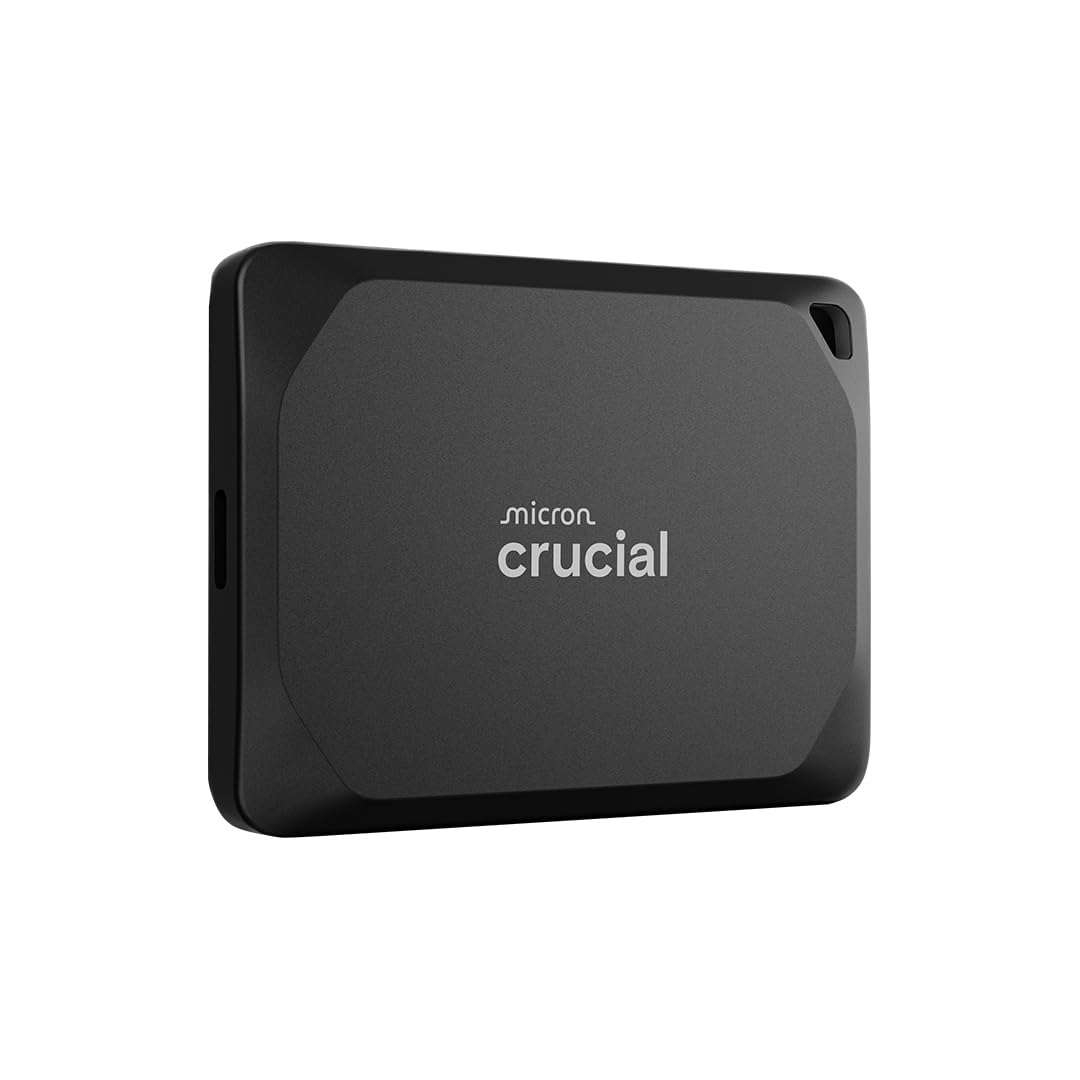
🚀 Power your creativity anywhere with Crucial X10 Pro – speed, strength, and style in your pocket!
The Crucial X10 Pro 4TB Portable SSD delivers ultra-fast read/write speeds up to 2100/2000MB/s, engineered for professional video workflows. Its rugged IP55 water and dust resistance and drop-proof design ensure reliability in any environment. Compatible across all major platforms via USB-C, it offers massive storage in a sleek, lightweight form factor, perfect for on-the-go creatives and managers who demand performance and durability.


| ASIN | B0C9WJQ9GP |
| Are Batteries Included | No |
| Best Sellers Rank | #1,825 in Computers ( See Top 100 in Computers ) #13 in External Solid State Drives |
| Brand | Crucial |
| Color | Black |
| Customer Reviews | 4.0 4.0 out of 5 stars (1,383) |
| Date First Available | 25 July 2023 |
| Form Factor | Portable |
| Hard Drive Interface | USB-C |
| Hard Drive Size | 4 TB |
| Item Weight | 42 g |
| Item model number | CT4000X10PROSSD902 |
| Manufacturer | Crucial |
| Product Dimensions | 6.5 x 5 x 1 cm; 42 g |
| Series | Crucial X10 Pro |
J**M
Product delivered with USB-C only
Product delivered with USB-C only But the USB extension has not provided along with the external hard disk and it’s difficult to connect with my desktop computer using USB-C type pin.
R**A
Parfait, rapide et belle capqcité
K**R
Fantastic. Excellent quality product. Does what is stated. Highly recommend this.
M**I
I like it 👌
F**N
これでいっぱい写真と動画するからね😆
S**A
TL;DR: If you're only seeing around 500 MB/s, there's likely an issue with your test method, file system, or port. With proper setup, you should achieve speeds up to 4× higher. Using proper queueing with io_uring and ext4 on Linux, I got ~1.93 GiB/s read and ~1.64 GiB/s write (≈2.02 GB/s and 1.76 GB/s in decimal MB/s), which aligns with the X10 Pro’s real-world performance on a USB 3.2 Gen 2×2 (20 Gbps) port. Heads-up: 20 Gbit/s theoretical translates to ~2.0–2.2 GB/s practical after encoding/protocol overhead, so these results are on target. My Test Environment Drive: Crucial X10 Pro 4TB OS: Ubuntu 24.04.3 LTS Port: Rear USB-C USB 3.2 Gen 2×2 (20 Gbps) (labeled SS 20) Cable: Included short USB-C ↔ USB-C cable Filesystem: Started on factory exFAT, then reformatted to ext4 for Linux benchmarking Why Initial Results Can Look “Slow” Common reasons users report ~500–700 MB/s: Running fio (or simple copy tests) with a synchronous I/O engine (e.g., psync) ⇒ effectively iodepth=1, which underutilizes the link Using the factory exFAT on Linux Nuance: On Linux, ext4 typically performs better than exFAT for heavy sequential workloads. Newer kernels’ exFAT can sometimes approach ext4, but ext4 is more consistently fast and stable for this use case. Plugging into a 5/10 Gbps port (USB 3.2 Gen 1/Gen 2) instead of 20 Gbps (Gen 2×2) Confirm Link Speed & Driver (Linux) Verify the device negotiated at 20 Gbps and is using UAS: lsusb -t # Example good output (abridged): # /: Bus 002.Port 001: Dev 001, Class=root_hub, Driver=xhci_hcd/9p, 20000M/x2 # |__ Port 001: Dev 002, If 0, Class=Mass Storage, Driver=uas, 20000M/x2 20000M/x2 → USB 3.2 Gen 2×2 (20 Gbps) Driver=uas → USB Attached SCSI (preferred; better than BOT) Filesystem Choice (Linux) For best performance on Linux, ext4 is a solid choice for heavy sequential I/O. Warning: Reformatting erases data on the target partition. Back up first. # Unmount if mounted (adjust the device path for your setup) sudo umount /dev/sdX2 # Make ext4 on the main data partition sudo mkfs.ext4 -F /dev/sdX2 # Mount and (optionally) persist via /etc/fstab sudo mkdir -p /mnt/x10 sudo mount /dev/sdX2 /mnt/x10 # Persist across reboots (replace <UUID> with lsblk -f output) lsblk -f echo 'UUID=<UUID> /mnt/x10 ext4 defaults,noatime 0 2' | sudo tee -a /etc/fstab sudo systemctl daemon-reload sudo mount -a Keep noatime. Avoid discard mount option since a weekly TRIM is cleaner for performance on portable SSDs. Benchmarks (Linux, Sequential I/O) Install fio if needed and use io_uring with adequate parallelism/queue depth. Use --direct=1 to bypass page cache and measure device throughput. # Install fio sudo apt install -y fio # Prepare a test directory mkdir -p /mnt/x10/bench Sequential READ (8 GiB, 256 KiB blocks, 2 jobs, depth 64): fio --name=seqread --filename=/mnt/x10/bench/testfile --size=8G \ --rw=read --bs=256k --ioengine=io_uring --iodepth=64 --numjobs=2 \ --direct=1 --runtime=30 --group_reporting Sequential WRITE (8 GiB, 256 KiB blocks, 2 jobs, depth 64): fio --name=seqwrite --filename=/mnt/x10/bench/testfile --size=8G \ --rw=write --bs=256k --ioengine=io_uring --iodepth=64 --numjobs=2 \ --direct=1 --runtime=30 --group_reporting Cleanup: rm /mnt/x10/bench/testfile My Results (ext4 on USB 3.2 Gen 2×2) Read: ~1927 MiB/s (≈2021 MB/s) Write: ~1684 MiB/s (≈1765 MB/s) Notes: Convert MiB/s → MB/s with ×1.048 (binary → decimal). These are peak sequential numbers (ideal for large model files). Random/small-file performance will be much lower by design; that’s normal for any SSD. Optional: Sustained Write & Thermal Behavior A longer write can show SLC cache size and steady-state speed. Expect an initial plateau near peak write, then a lower sustained rate as the cache fills. This is normal for NVMe-based portables. # WARNING: larger write; adjust size/time as desired fio --name=longwrite --filename=/mnt/x10/bench/testfile --size=64G \ --rw=write --bs=256k --ioengine=io_uring --iodepth=64 --numjobs=2 \ --direct=1 --time_based --runtime=300 --group_reporting rm /mnt/x10/bench/testfile Optional: Random Read (Expectation-Setting) Random I/O (e.g., 4 KiB) measures something very different from sequential streaming and will be far lower in MB/s and expressed better as IOPS. fio --name=randread --filename=/mnt/x10/bench/testfile --size=8G \ --rw=randread --bs=4k --ioengine=io_uring --iodepth=64 --numjobs=4 \ --direct=1 --runtime=60 --group_reporting rm /mnt/x10/bench/testfile Optional: exFAT vs ext4 A/B (Same Profile) If you want to compare filesystems on your kernel: # exFAT (factory format): run the same seqread/seqwrite profile # ext4 (as above): run the same profile On my Ubuntu 24.04 kernel, ext4 measured consistently faster in sequential write and similar or slightly better in sequential read vs exFAT. YMMV with different kernels. Maintenance & Safety (generic wording) Use the included short USB-C cable and plug the drive directly into a native USB 3.2 Gen 2×2 (20 Gbps) port on your system. Avoid hubs, docks, monitor passthroughs, and case front-panel ports unless they explicitly support 20 Gbps (Gen 2×2); many fall back to 5/10 Gbps. Desktop tip: the motherboard I/O panel typically hosts the 20 Gbps Type-C; front-panel headers/cables are often 10 Gbps. Laptop tip: use the USB-C port that the OEM labels “USB 3.2 Gen 2×2 / 20 Gbps.” Many laptops have USB-C ports capped at 10 Gbps (even if they are Thunderbolt-capable), so check the specs. Enable periodic TRIM (recommended): systemctl status fstrim.timer || sudo systemctl enable --now fstrim.timer Safe power-off before unplugging (optional but recommended): sudo sync && sudo udisksctl power-off -b /dev/sda Keep the drive reasonably ventilated during long transfers to reduce throttling. Representativeness & Scope These tests target sequential large-file throughput (e.g., AI model weights, media). They are not intended to represent database workloads or tiny-file metadata stress—those require different profiles (smaller blocks, mixed read/write, higher concurrency tuned to the application). Verdict With the correct port, filesystem, and benchmark settings, the Crucial X10 Pro 4TB delivers its advertised performance on Linux. It’s compact, fast, and well-suited to large datasets when paired with a true 20 Gbps (Gen 2×2) connection. This methodology above avoids common pitfalls (synchronous I/O, low-speed ports, and unrepresentative tests) and produces results that match real-world expectations.
Trustpilot
1 month ago
1 week ago