🚀 Upgrade to the speed elite — don’t get left behind!
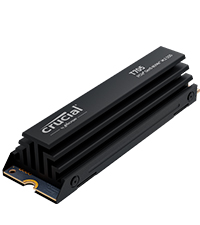
The Crucial T705 PCIe Gen5 NVMe 1TB SSD delivers cutting-edge performance with up to 13,600MB/s read speeds and 10,200MB/s write speeds, optimized for Intel 13th/14th Gen and AMD Ryzen 7000 platforms. Its 1TB capacity supports large game libraries and high-res media, while a heatsink-compatible design ensures sustained performance under heavy loads. Backed by Micron’s trusted TLC NAND and a 5-year warranty, it also includes a 1-month Adobe Creative Cloud subscription and Acronis cloning software, making it the ultimate choice for gamers and creative professionals craving speed and reliability.


| ASIN | B0CTRV9CVP |
| Additional Features | Hardware Encryption |
| Best Sellers Rank | #5 in Internal Solid State Drives #100 in Computer Internal Components |
| Brand | Crucial |
| Built-In Media | 1month Adobe Creative Cloud All-Apps, Crucial Storage Executive, Internal SSD, Quick start guide |
| Cache Memory Installed Size | 1 |
| Color | Black |
| Compatible Devices | Desktop, Gaming Console, Workstation |
| Connectivity Technology | PCIe |
| Customer Reviews | 4.6 out of 5 stars 1,659 Reviews |
| Data Transfer Rate | 13600 Megabytes Per Second |
| Digital Storage Capacity | 1 TB |
| Enclosure Material | Nand Flash |
| Form Factor | M.2 (2280) |
| Global Trade Identification Number | 00649528940162 |
| Hard Disk Description | Solid State Drive |
| Hard Disk Interface | NVMe |
| Hard-Drive Size | 1 TB |
| Hardware Connectivity | Solid State Drive |
| Installation Type | Internal Hard Drive |
| Item Dimensions L x W x Thickness | 3.15"L x 0.87"W x 0.15"Th |
| Item Height | 0.15 inches |
| Item Weight | 9.9 Grams |
| Manufacturer | Crucial |
| Media Speed | 10200 Megabits Per Second |
| Model Name | Crucial T705 PCIe Gen5 NVMe M.2 SSD |
| Model Number | CT1000T705SSD3 |
| Number of Items | 1 |
| Read Speed | 13600 Megabytes Per Second |
| Special Feature | Hardware Encryption |
| Specific Uses For Product | Business, Gaming, Personal |
| UPC | 649528940162 |
| Unit Count | 1.0 Count |
| Warranty Description | 5-year limited warranty |
A**E
So far, so good, but really really hot, (T705 2 TB Drive)
This is an interesting piece of hardware. This particular NVME SSD Gen 5.0 exceeded read and write speeds for me in Crystal Disk, and that was on a working "C" drive. This Gen 5.0 drive cooks, and in more ways than one. Running this in the Gen 5.0 slot on a Gigabyte X670E motherboard. I made the error of initially installing this drive on an add in card with no heatsink to clone to as the target drive. I thought since the add in card drive PCIe slot was rated at 4.0, and not 5.0, I would not have to worry about temperatures. WRONG. The drive shut down after about 20 seconds, which I believe to be the temperature high limit was tripped. You absolutely have to run this SSD with a good heatsink, no matter what you are doing with it. I did not think the Motherboard heatsink was going to cut it, and installed a Thermalright heat pipe heat sink on the Crucial T705. This is a good heat-sink, but despite that, running Crystal Disk, and the heat-sink sitting above a hot RTX 4080 Super back plate, the drive still hit 80 Degrees C. running the Write portion of the Crystal Disk benchmark. This is in a well ventilated Case, but with an AIO over the CPU, this is kind of a dead space. I am going to get a slightly larger SSD cooler, with a fan. It helps if I run the RTX 4080 fans all the time to cool the video card and not transmit so much heat to the SSD cooler, but I am not gaming all the time nor do I want my Video Card fans running constantly. These are just some caveats to look out for. The Crucial T705 SSD is running flawlessly, and yes, games and programs do load faster. The associated Crucial Storage Executive is fine, but if you are used to the Samsung Tool Box, you will be disappointed. You are best off with an aftermarket cooling solution, as I do not think the "stock" heat sink some of the models come with would be adequate for file transfers, especially being so close to a hot Video Card. Tom's Hardware has some good testing reviews on Gen 5.0 SSD heatsinks with heat pipes. Cheers!
J**Z
Nice NVMe
Worth it, it's super fast, It has a nice design, was easy to install. The states pops up as healthy, and the temperature is around 40°c, worth it.
P**T
Buy naked version – not this heatsink version
You might think (as I did) that you’re doing better by getting this OEM heatsink version – paying about $30 extra. I learned the lesson in a hard way that; exactly the opposite holds true. Crucial periodically runs deals; selling heatsink version even cheaper than naked drive. Don’t fall for that and simply buy the naked drive, whatever the price. Otherwise (if you buy heatsink version); you’ll either have to do below surgery (which is not for the faint-hearted) or your drive will fail earlier (because of heat) and Crucial will blame you running it that way (and very likely not honor your warranty – more on that later). This Gen.5 T705 is an extremely fast M2 drive. I’m very happy with its unbelievable performance. I use it on my new Asrock Taichi Lite Z890 motherboard. After I assembled my PC, I noticed that the hottest temperature on my system is this M2 drive. Not CPU, not GPU, not RAM modules and not my Gen.4 Samsung 990 Pro M2. While PC is completely idle (not running anything); that Crucial M2 displayed 61C temperature. I stress-tested my GPU (which is milimeters away from this Crucial) and that 61C quickly rose close to 80C (mind you; I’m not even stressing that drive itself). I immediately decided to replace that tiny OEM heatsink, as it’s completely not up to par for a decent cooling job. I’ll number my attached pics – so you can relate to my text here. I use HWiNFO64 freeware to check all my system characteristics. When you look at its reporting for this Crucial drive (pic-1); you’ll see that the drive keeps (in it) record of how long you used it at above 87C (warning) and 89C (critical). So if you (without even being aware) barbecue your drive and send it in for warranty replacement (when it fails); you can guess who Crucial will put the blame on? Now all new MBs put both that Gen.5 M2 slot and Gen.5 GPU slot right next to CPU (distance has to be short). You can see from (pic-2) that; this M2 drive is literally sandwitched between towering wall of GPU (no heat escape that direction) and my humongous Noctua NH-D15 G2 CPU cooler (airflow is there, towards rear suction fan). But it’s absolutely clear that; this OEM Crucial heatsink is just too small to provide adequate cooling. I even didn’t try Asrock MB’s original heatsink for that slot (as it’s even smaller). So it’s not even a matter of preference; you simply got to replace that OEM heatsink. That’s why it’s much easier to buy a naked drive to begin with; so you can avoid below pain of surgery. Another point; those Gen.5 M2 drives are just going thru initial growing pains (in fact, Crucial is still the only company to offer such speed-demon drive). Why is it putting out that much heat?; that is the first question (even more heat than Z890 chipset itself – which works fine with about same size heatsink). You’ll see on one of my attached pics (when I took out the naked drive); there is metal body Phison controller there (where actual two RAM chips have plastic body). Probably that much heat is coming from that Phison controller – not the RAM chips. If those Gen.5 M2 drives are all to put out so much heat; then industry will probably evolve to a different casing – so they can be cooled like CPUs. Time will tell. After searching many M2 heatsinks (active and passive); I decided on this passive Thermalright HR-09 2280 PRO (pic-3). There are ones with active fan cooling. But such small fans always fail in short time and they are noisy. So I went with this largest passive heatsink I could find. I hope that Noctua also starts making large M2 heatsinks. My Phanteks full-tower case can even house twice the height. Width-wise (as you are seeing in pic-3) it’s literally 1 milimeter from CPU cooler. Even if it touches there; no problem, as nothing moving (it might even get better cooling that way). When I run my PC with this new heatsink; Crucial M2 fall back to 47C. Still the hottest component on that motherboard; but much better than previous 61C with OEM heatsink on it. My other Gen.4 Samsung 990 Pro M2 runs at 42C anyway (under Asrock’s large metal surface heatsink). If I ever see my usage pushing it to above 80C; I’ll simply tweak my BIOS fan curve, to run my case fans faster / earlier. So far, 14C saving is good enough for me. Now on to surgery : how to remove naked Crucial drive from it’s OEM heatsink. I repeat: this process needs only two special tools (that you have to use), but more importantly very precise hand control (I happened to make my living as field service engineer – so it’s all easy for me). If you slip your hand once; you can instantly ruin your expensive drive. If you are not sure; don’t even try, I’d humbly suggest. You’ll need an anti-static mat (see wrist connection on pic-4) and blade opener tool (pic-5). No, you can not use a knife or flat-blade screwdriver instead. You were warned. On the side of the drive, you’ll notice two dimple dots on the edges and one flat line (blue arrows on pic-6). Insert your tool firmly but very slowly till you only pass that middle-line (if you push it all the way in; you’ll instantly damage the board/components of your drive; you can throw it away at that point). Once you merely pass that middle-line apply sideways leverage to rock it out of its grasp. Also do the same on both dimple dots. You’ll feel that the bottom casing cover slightly moved (pic-7). Now switch to other side with your tool and do the same there. As you slowly and patiently repeat that left & right few times; the bottom cover will start to come out (pic-8). Attention to the blue sticker indicated by arrow on that pic. As slowly pulling out that bottom metal cover; you’ll be peeling that sticker. No hasty movements there, as you don’t want to damage anything. Now that cover completely comes out (pics 9, 10). Now you remain with your naked drive sticking to actual heatsink, by blue-stickers on the other side (pic-11). This is the step needing utmost precision: you insert your tool between that blue-sticker and heatsink (and NOT between blue-sticker and the chip!). See detail on pic-12. You very slowly push your tool deeper towards other side (so; sideways, not length-wise). You are separating that blue-tape from the heatsink. Don’t you dare to yank the board by pulling length-wise; It’s a very thin board and you’ll simply snap it in two. Just be patient and do above described on those 3 blue-stickers from side to side. After enough loosening of stickers; finally lift your naked drive sideways (never pull length-wise). Pic-13. Now you have to clean all remnants of blue-stickers from both side of your naked drive. You’ll use your fingers and nails doing that (do not use any tool, as you can damage those microscopic components on board. Now your drive is finally ready to be mounted on to new heatsink (pic-14). Follow the simple instructions which come with heatsink. Just pay attention to orientation before you stick on to it; so you don’t put upside down. You’ll also need to align screw-hole of your drive and heatsink. After you place the bottom metal cover; you first firmly push it towards heatsink (firm, but not crushing hard) > then you tighten 4 side screws. So it gets good thermal conductivity thru new stickers on both sides. The hole of that new heatsink lines up with “screw-hole” of your drive. My Asrock motherboard has such “tool-less” rotating notch for that hole. So I was able to slide that notch between heatsink and M2 board. Pay attention how your motherboard mounting is (actually even before starting all this adventure). Because if you need to use an actual screw to mount your M2 drive to your MB; now you’ll need much longer version of this very tiny mounting screw. If your MB also has such “tool-less” thingy, I hope that it’ll also slide in as described above. If you are reading this before you actually bought your drive; I presume that at this point you decided to buy the naked version and avoid that Crucial heatsink nightmare at all cost, correct?!
N**R
Great Drive, Horrible Company
Very good drive. Reads and writes as advertised. Loads up everything that I need it to very quickly. Sad to see Crucial shutting down, Micron definitely sold the consumer market out for AI datacenters and it's infuriating.
H**R
Great!
It is a shame that the owners are retiring this brand of the market. This NVMe is great, good capacity and faster, you will notice its speed inmediatly. I use it as my main drive for the OS and I am really happy with it.
U**X
Fast
Fast, works great for several months now in a MAG X870 Tomahawk motherboard.
S**M
Not ready for prime time (the latest 14.5MB.s model 710)
I read the reviews for this before purchasing it, and most all were positive, but beware - most of the reviews are for the other SSDs in the Crucial product line. All of the reviews got lumped together and with the rest of their SSDs. This model, the 710, boasts write speeds of 14,500 MB/s which is quite fast. I wanted to take advantage of this newer technology, but as usual, being an early adopter does not always work out. The SSD does not even come with a thermal tape for heat dissipation. I didn't need a heatsink, but they could have at least tossed in an adhesive heat strip for almost $500. First, the SSD runs quite hot. This is not uncommon, but a bit hotter than I'm used to. I tried to clone an SSD to this one. I failed the first try with a sector write error. I tried it several more times with three different software packages - Acronis backup and restore, Windows backup, and EaseUS Partition manager. I have used these packages previously and they always worked fine. With each attempt, I experienced sector write errors - sometimes in the same sector or a sector close to it. I could not make a single successful copy of the source SSD. I returned it and purchased a Samsung 4TB SSD. Although the Samsung SSD is slightly slower, my disk clone worked the first time. I tried all three backup programs and all of them worked fine. Although I can't say for sure, I think that in this case Crucial may have pushed the envelope a bit too much leading to the failures I experienced.
J**O
Amazing product
This product was easy to install in my Mb and it works as Crucial said. You need to know that it manage more temp but in my case was not more than 42 Celsius. No throttling in any moment with a good cooling device.
Trustpilot
2 days ago
5 days ago